November 26, 2014

CRM 2015 Report Extension and Visual Studio 2012

With the release of Dynamics CRM 2015, Microsoft made available the related tools including the new Report Authoring Extension (the download link is listed under my Resources page).

The Report Extension (required to build FetchXML reports) is now compatible with Visual Studio 2012.
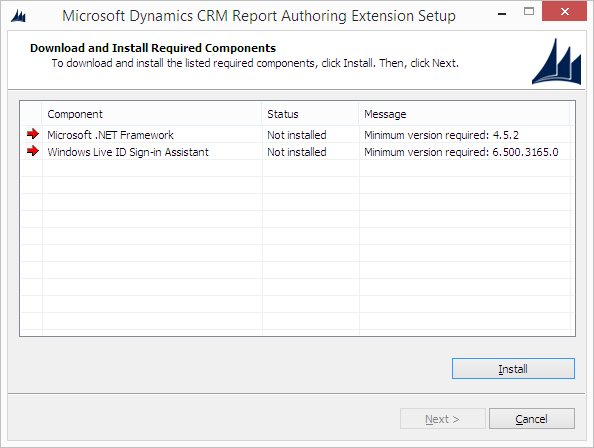
SQL Server Data Tools - Business Intelligence for Visual Studio 2012 must be installed, together with .NET Framework 4.5.2:


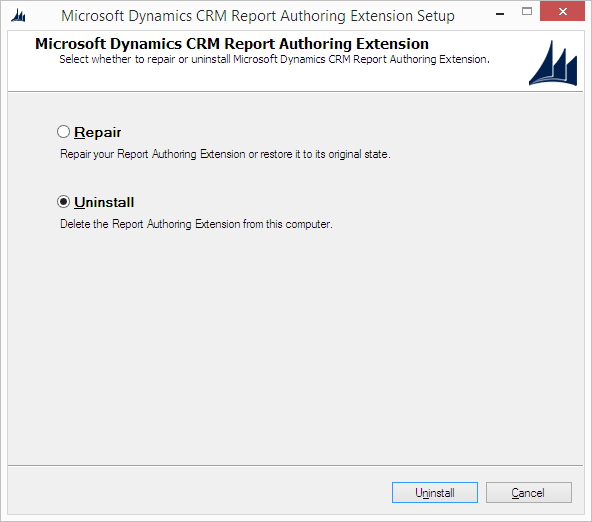
Because I had in my machine the CRM 2013 Report Extension, the setup prompted me for Repair or Uninstall:


In this case you need to click Uninstall and relaunch the setup in order to install the 2015 version because choosing Repair will return an error.

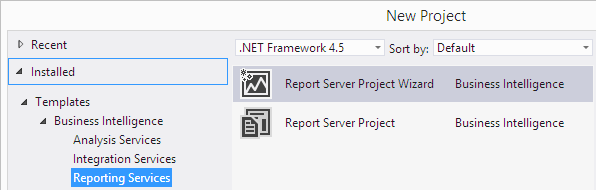
After the installation is completed, the template Business Intelligence is available inside Visual Studio:

Dynamics CRM for iPad updated with CRM 2015 support

Microsoft updated its iPad app for Dynamics CRM (App Store) with CRM 2015 support.

The App description starts with an important note:
For CRM 2015, this app is supported on iOS 6, 7, and 8. For CRM 2013, it is supported on iOS 6 and 7.
My iPad is still on iOS 7 so I am not able to test this incompatibility.

The Changelog is the following:
  • Use multiple dashboards on the go
  • Personalize your Home page
  • Create records and capture notes while disconnected
  • Support for additional languages
  • Bug fixes
Some Screenshots:


November 24, 2014

My Top 10 Tips for Dynamics CRM Development

Each Dynamics CRM implementation is unique but the problems faced often are not.
Here my Top 10 Tips for Dynamics CRM Development:

  1. Custom Entities have their own privileges
    Developers normally have the higher privileges (like System Administrator role) when they customize CRM but end users not. This means that also Custom Entities privileges must be tuned (and don't forget the Golden Rule: Roles are additive).
    Link: Security role UI to privilege mapping

  2. CRM Online only supports FetchXML reports
    This is one of the well known limitations regarding CRM Online. Reports must use only FetchXML and more important this is true also for OOTB Reports: they are built using SQL Queries and they must be rewritten with FetchXML if you want to apply some changes.
    Link: Dynamics CRM 2011 Online default Reports not editable

  3. DateTime stored values are always in UTC
    DateTime fields in CRM UI show the right values but when you retrieve them by code are not the same? The automatic UTC conversion made by CRM is the reason. For this tip two links.
    Link: Truths about Dynamics CRM Date and Time
    Link: Dynamics CRM DateTimes - the last word?

  4. OData endpoint doesn't support all the CRM operations
    OData is a fast and convenient way for CRUD operations but you still need SOAP to perform some tasks like assigning a record.
    Link: Use web service data in web resources (OData and Modern app SOAP endpoint)

  5. Know the Sandbox limits
    CRM Online only supports Sanbox for Custom Workflow Activities and Plugins. Normally you will be fine, but for some operations you will face these limits (like the impossibility to call IP addresses).
    Link: Plug-in isolation, trusts, and statistics

  6. Dialogs can't be translated
    Dialogs are not included in the normal localization process used for other Dynamics CRM components. The suggested way is to create a dialog for each language you need to support.
    Link: Create solutions that support multiple languages
    Link: CRM Multidialog Multilingual or Language Specific?

  7. Generate the Early Bound classes only for the entities you need
    Personally I prefer Late Bound style but Early Bound has its big advantages. Do you know that you can create the classes only for some entities instead including the 8+ MB file generated by crmsvcutil.exe? Check the tool provided in the link.
    Link: CRM Early Bound Generator

  8. Use Pre-filtering in your reports
    CRM Pre-filtering is a very powerful function allowing users to add additional filters with an Advanced Find interface before the report runs.
    Link: Microsoft Dynamics CRM Pre-Filtering for CRM Reporting

  9. Always customize CRM using a solution
    Small CRM implementations or Dynamics CRM Online sometimes don't have a development environment, in this scenario often happens that customizations are done by "Customize the System" instead using an unmanaged solution. Also if the result looks like the same, not using a solution will make your changes less traceable (and it's better to don't talk about the ugly new_ prefix).
    Link: Introduction to solutions

  10. Use supported methods instead of SQL and DOM manipulation
    "I want the text bigger", "we can make this dropdown red when it's empty?", "this lookup must select only accounts", "we updated the records by SQL". They sound familiar to you? Often some requests can not be implemented using supported methods. Try to explain why and always suggest a supported alternative: instead of making the optionset background red, why not adding a small web resource (like a red dot) beside the field? A small scheduled console application that updates the records with the CRM Web Services can be a solution?
    Link: Supported extensions for Microsoft Dynamics CRM

November 20, 2014

ConditionOperator To FetchXml Operator

Dynamics CRM SDK contains the ConditionOperator enumerator that can be used when building a QueryExpression, but the SDK doesn't provide a way to convert a ConditionOperator to its FetchXml equivalent.

I created a static method that accepts a ConditionOperator enumerator and returns a string containing the equivalent FetchXml operator:

public static string ConditionOperatorToFetchXmlOperator(ConditionOperator conditionOperator)

string fetchXmlOperator = ConditionOperatorToFetchXmlOperator(ConditionOperator.EqualUserId); 
// fetchXmlOperator will be "eq-userid"
The library can be downloaded from Technet Gallery:
https://gallery.technet.microsoft.com/scriptcenter/ConditionOperator-To-065c445e

Note: the library contains the ConditionOperator for CRM 2011, CRM 2013 and CRM 2015.

October 29, 2014

Open CRM 4.0 and CRM 2011 instances using previous Internet Explorer versions

Dynamics CRM 2015 will be available soon but many customers are still using successfully CRM 4.0 (released in 2007) or CRM 2011 (nearly 4 years old) for their business processes. On the other hand we have Operating Systems and browsers updated regularly due to security reasons or machine upgrades.

Dynamics CRM has been always compatible with Internet Explorer but not with all the versions, we can't expect to use Internet Explorer 6 with the latest version or pretend to use IE11 with CRM 4.0.

As developer I faced this issue when I upgraded my PC to Windows 8 and Internet Explorer 11, I wasn't able anymore to use a CRM 2011 instance, the mobile version was prompted to me.


CRM 2011 is compatible with Internet Explorer 11, but it must have Rollup 17 installed, and that wasn't the case.
Which Internet Explorer version can be used in order to access correctly Dynamics CRM? Assuming we don't know if a rollup is installed, the IE versions that can be used with RTM are:

Internet Explorer 6 and 7 for CRM 4.0
Internet Explorer 7, 8 and 9 for CRM 2011
Internet Explorer 8, 9, 10 for CRM 2013

Based on this data Internet Explorer 7 is the best candidate for CRM 4.0 and CRM 2011. We can rely on a Virtual Machine in order to use a previous Internet Explorer version without messing up our current environment.

Creating a VM is a tedious process and it can take several hours. Lucky for us Microsoft provides a set of Internet Explorer VMs ready to be downloaded.
They are available at modern.IE, the intended use is to test a website compatibility with old browsers but they are also good to access occasionally to Dynamics CRM. I wrote occasionally because these VMs are not meant for a production use and the Windows version included is a trial.
If it's necessary to use constantly an older browser (or you have a Mac) it's better to build a proper VM with the right licenses.
The following VMs are available at modern.IE:

IE 6 - Windows XP
IE 8 - Windows XP
IE 7 - Windows Vista
IE 8 - Windows 7
IE 9 - Windows 7
IE 10 - Windows 7
IE 11 - Windows 7
IE 10 - Windows 8
IE 11 - Windows 8.1

Personally I use VirtualBox (you need to disable Hyper-V in Windows 8 to get better performances) but the VMs are available also for Hyper-V, VMWare, Virtual PC and Parallels.

October 20, 2014

Google Chrome 38 Lookup Fix

In my previous post I analyzed the lookup issue caused by the latest version of Google Chrome (link) but I wasn't able to provide a solution.

UPDATE:
Google Chrome 38.0.2125.111 fixed the lookup error, please update it.

Some days ago Jon Grant wrote a JavaScript patch based on my post, you can find it here:
http://jongrant.org/2014/10/17/patch-for-chrome-38-lookup-error-in-dynamics-crm-2013/

His solution is unsupported but effective. Starting from his JavaScript patch I created a managed solution that includes this (unsupported) fix in all the entity forms.
The solution works with CRM 2013, but it's not tested with CRM 2011 UR12+.

Download from Codeplex:
https://chrome38lookupfix.codeplex.com/

REMEMBER THAT THIS SOLUTION IS UNSUPPORTED.

October 10, 2014

Lookup errors with Google Chrome 38

Google released a new version (38.0.2125.101) that breaks (again) Dynamics CRM. When users try to open a lookup they get the following error:

Currently there isn't a fix for this issue and it is not related to the previous showModalDialog issue.

UPDATE:
Google Chrome 38.0.2125.111 fixed the lookup error, please update it.

A managed solution (unsupported) that fix this issue is available:
Google Chrome 38 Lookup Fix

Offline installers of Google Chrome V37 (32 and 64 bit) are available:
Google Chrome 37.0.2062.124 32 bit (MD5: 6CF617A12FB9B7169B6C69D328F63389)
Google Chrome 37.0.2062.124 64 bit (MD5: 91644DE37A8EC506163FCBBCBD9AD0E4)

Microsoft Support KB Article regarding this issue: http://support2.microsoft.com/kb/3008160

Now I will explain what and how Google Chrome broke the lookup functionality:

When the user opens a lookup, CRM calls the web service AppWebServices/LookupService.asmx (message RetrieveInlineSearchResults) in order to fetch the preview records:

With Internet Explorer and Firefox the web service returns 200 (OK) but with Google Chrome it returns 500 (Internal Server Error). Which is the difference between the POST request made by Chrome and the other browsers?
The correct request body is the following:
<?xml version="1.0" encoding="utf-8" ?>
<soap:Envelope xmlns:soap="http://schemas.xmlsoap.org/soap/envelope/" xmlns:xsi="http://www.w3.org/2001/XMLSchema-instance" xmlns:xsd="http://www.w3.org/2001/XMLSchema">
    <soap:Body>
        <RetrieveInlineSearchResults xmlns="http://schemas.microsoft.com/crm/2009/WebServices">
            <typesArray>
                <int>1</int>
                <int>2</int>
            </typesArray>
            <bindingColumns></bindingColumns>
            <additionalParameters>...</additionalParameters>
            <positions>
                <int>0</int>
            </positions>
            <resolveEmailAddress>false</resolveEmailAddress>
            <savedQueryTypeParameter></savedQueryTypeParameter>
            <defaultViewId></defaultViewId>
            <values>
                <string></string>
            </values>
            <sortResults>true</sortResults>
        </RetrieveInlineSearchResults>
    </soap:Body>
</soap:Envelope>
Chrome V38 doesn't add the piece
            <values>
                <string></string>
            </values>
causing the web service call to fail.
I debugged the CRM JavaScript and I found the connected piece of code (JsProvider.ashx):
!isNullOrEmptyString($v_D) && $v_0.SetParameter("values", $v_6);
$v_6 contains the text inside the lookup, after CRM will put this value inside an array called aParameters (script global.ashx) in order to build the SOAP request.
CRM doesn't use an object but an array to handle the values and check with a function called IsNull if the value is already inside the parameters:
function pushCommandParameter(oParameter) {
    // oParameter.Name is "values"
    if (!IsNull(aParameters[oParameter.Name])) // Google Chrome returns always true when oParameter.Name is "values" !!!
        aParameters[aParameters[oParameter.Name]] = oParameter;
    else {
        aParameters[oParameter.Name] = aParameters.length;
        aParameters.push(oParameter);
    }
}
Google Chrome returns something when you access the property "values" of an array. This can be easily tested:
var myArray = new Array();
alert(myArray['values']); // it returns function values() { [native code] }
alert(myArray['anotherparameter']); // it returns undefined
Due to this new behavior of the arrays the SOAP request is not created correctly (the missing <values><string></string></values> piece) and CRM returns 500 (Internal Server Error).

Which is the reason of this change? Google Chrome V38 introduced a partial support for ECMAScript 6, including the method Array.prototype.values() that causes this behavior and consequently the lookup errors inside Dynamics CRM.

A fix is not available (an update of Google Chrome or Dynamics CRM is the only solution) so if you still have Google Chrome V37 you can disable the auto-update (instructions here) or use another browser (Internet Explorer or Firefox).