Showing posts with label #pcf. Show all posts

December 18, 2024

Apple macOS and PCF Development

Second part about my journey with the new Mac Mini M4 (first post here) and surprise surprise is about PCF development!

I usually don't code PCF components because most of the time I can find the one I need inside PCF Gallery, there are more than 550 components listed there, so big kudos to all the authors.

PCF development usually brings people not familiar with Power Apps/Power Platform inside the ecosystem, when a new control is published inside PCF Gallery I don't ask where they developed it but I suppose someone used a Mac.

First piece is to install Visual Studio Code, it's cross platform, perfect.

To develop PCF controls we need two important components:

  • NPM
  • Microsoft Power Platform CLI (also knows as PAC CLI)
To install NPM there are several ways, I installed first Homebrew (remember to add to the path by using the commands listed after the installation) and after I launched the command brew install npm.

To install the Microsoft Power Platform CLI you can install this Visual Studio Code extension:
BUT before installing this extension you need to have the .NET SDK on your machine, otherwise you get an error.
The latest versions of .NET are cross platform, I installed the SDK Installer, macOS Arm64 version from the official site:

After the SDK, proceed to install the Power Platform Tools extension and we can verify the PAC CLI is installed by running inside the Visual Studio Code Terminal the command pac:
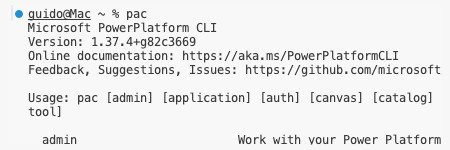

With NPM and PAC CLI we can now create a new PCF, just follow the Microsoft documentation for the right syntax:

Once you have the structure inside your Visual Studio Code you edit and test the PCF as usual, in my case I recreated my PCF Custom Url Control.

There is also a Microsoft documentation page on how to create a solution and package the PCF inside it:

Note: the path written inside the documentation is Windows style (c:\), as we are on Mac we need to use a different style, example:

pac solution add-reference --path /Users/username/folder

and because we have the .NET SDK installed we can use the command

dotnet build

this will create an unmanaged solution inside a debug folder, if you want a managed solution you can run the command

dotnet build -c release

Once you have the solution you can install it inside your environment and configure the PCF. A screenshot of my component inside a form:


I had no doubts I can create PCF controls with a Mac but to prepare the machine I needed some steps, however I had no problems by following the instructions I found from web searches and the Microsoft documentation.

What I will write inside the next episode? I don't know yet!

November 17, 2024

a Canvas app for bus tickets? Possible!

A month ago I attended Scottish Summit 2024 in Aberdeen, because was a new place for me I decided to visit the city and I used the public transportation.
I downloaded the "Stagecoach" app and I bought a ticket, it appeared like this screenshot:
When I launched the app I was surprised, in addition to the QR Code in the top there is also a centered colored bar, switching between the time and a random word.
The colored bar also tilts based on the accelerometer of the mobile phone.

Why they implemented this colored bar? The reason (in my opinion) is to facilitate the driver to check the ticket validity without scanning the QR Code.
  • Color and word change every day, today can be green with the word "house", tomorrow can be red with the word "crisp", probably at the beginning of the shift the driver knows the color and the word of the day.
  • The switch between the time and the word and the tilt is to show you are inside an app and is not a screenshot
After I used the app I asked myself: "Can I build a Canvas App with similar concepts?"
I usually don't do Canvas apps but this was interesting to me for two reasons:
  1. it's not the usual gallery/edit data app
  2. I am implementing a real business scenario
Let's start with the QR Code, there are some PCF controls but I wanted to keep it as simple as possible, so I used a service from this site: https://goqr.me/api/
It returns a QR Code as image with the text I want, for example this one shows my LinkedIn profile:

The challenging part is of course the colored bar.
First of all I needed to display the current time, so I added a Timer (with AutoStart equals true and Duration 1000 - 1 second) where I wrote the following formula:

Set(CurrentTime, Now())

In this way I have a variable updating every second with the current time (Now function).

After I added a label to display the time, I just want to show hours and minutes, so the formula for the Text property is:

Text(CurrentTime, "HH:mm")

After I needed to switch between the time and the word, I decided to create a second label with some dummy text and I needed some logic to make visible the first label and hide the second (and vice versa) every X seconds.

Another timer then, this time running every 3 seconds and with AutoStart true. Power Fx has the Mod function, if I do a formula Current Seconds MOD 2, I get 0 or 1. Because the timer runs every 3 seconds, I am sure he seconds will be one time odd and one time even. Let's wrap everything in this formula: the variable is named CurrentMode, it fetches the seconds of the current time, converting it to a number (Value function)

Set(CurrentMode,Mod(Value(Text(Now(), "ss")),2))

Now I can use the variable CurrentMode for the Visible property of these two labels, one is set to CurrentMode and the other to !CurrentMode. In Power Fx 0 and 1 are equivalent to false and true statements.

Next step is the tilt, I didn't find a way to rotate a shape inside a canvas app so I decided to change the vertical position of the labels based on a device property. I used the Compass.Heading but there are others functions you can use.
The formula I applied for the Y property is the following:

350+(Compass.Heading)

So every time I move the mobile phone, the label position gets updated.

Now we need to take care of the color, for simplicity I assume each day has a different color, so the Fill property of the label is a Switch statement based on the Weekday of Today (Weekday returns a value from 1 to 7). Formula:

Switch(Weekday(Today()), 1, Color.LightBlue, 2, Color.Orange, 3, Color.LightGreen, 4, Color.Yellow, 5, Color.Violet, 6, Color.PaleVioletRed, 7, Color.LightGray)

Last part is to have a different word every day, we need 366 words, so I created a Named formula called Words, storing a Table with a property named Word:

Words = Table({Word:"apple"},{Word:"bread"},{Word:"crane"}, ...)

This is a bit tricky, inside a Canvas app we don't have a function as DayOfYear so I needed to use DateDiff function with a combination of Year and Today functions:

Index(Words,DateDiff("1/1/"& Text(Year(Today())),Today())+1).Word

The Year is used to get the first day of the year, DateDiff calculates the difference and we add 1 because Index to access the table starts from 1.

Now the app is ready, here a video in action (I left the timers and the value of the Mod variable visible):

May 20, 2020

PCF Gallery: 1 year after

1 year ago I opened PCF Gallery, time really does fly. The site went beyond my expectations, listing more than 200 controls and having more than 90 authors. My goal was simple: to have a space where open source controls can be listed so developers can see what others are doing, publish their work (in addition to the repository) and show what PCF controls can actually do to help end users.

The site really needs some improvements (mainly regarding the search) but thanks to the suggestions of the community I was able to introduce small features that I implemented as indicators: if a control is for Canvas Apps, if the control has a license and if a managed solution is available.

License information is really important for some end users and also for the authors, it may be a secondary thing, but having a license really step up the control and how it should be used or expanded by others.

The managed solution indicator is something that I needed for myself in a first place. The process to compile a PCF control isn't so straightforward for end users and can be annoying for developers, if the author spends extra time to publish also a managed solution for the control, the minimum that I can do is to make that information available to others.

I am aware that the community created several tools to assist users in the creation or deployment of PCF controls, and also if they are not shown inside the gallery, I try to create awareness using the Twitter account (there is also a LinkedIn Page by the way).

I am not good to write this kind of posts, but this morning I received this message:
"Dear Guido, thank you for all the effort behind the PCF Gallery and possibility for me and all other Power Apps enthusiasts to use all those tools. I think this is an incredible way to bring the community together."

I don't care about the views or the stats behind the site, I just try to make something available for others (as simple as it can be to list other people controls) and I am happy when someone finds the site useful.

 Thanks everybody and especially the authors listed inside PCF Gallery.


February 29, 2020

Exam MB-400: My Experience

This morning I finally got the result from an exam I did a while ago: the MB-400: Microsoft Power Apps + Dynamics 365 Developer.
I passed it (result here) but I learned two important lessons:
  • I will never do again a Beta exam
  • I need to prepare better the exams
The reasons I took this exam in Beta were essentially two: I got an early discount code (here a mention of it for the first 300 people) and it was the first technical exam about Dynamics 365 released in a long time.

The previous technical exam was MB2-701 Extending Microsoft Dynamics CRM 2013 (that I passed too by the way) and I was eager to prove myself that I still got it. My main skills regarding Dynamics 365 and the Power Platform are technical, so I felt that I needed to do this exam, as additional proof I didn't do yet the MB-200: Microsoft Power Platform + Dynamics 365 Core that is considered by many one of the exams that you need to take if you want to start this path.

If you use the discount code you have also a time limit (in my case was 12 December 2019) but due to previous commitments I scheduled the exam for 14 November, only two weeks after the announcement.
In that two weeks I tried to prepare the exam the best as I could, but remember to follow the official exam skills in addition to the suggested learning path because (for example) the Learning path suggests Extend Dynamics 365 portals but Portals is not an argument included in the exam skills, and the exam skills contain PCF (Power Apps Component Framework) and a learning path is not available yet.

When I booked the exam I thought: "if I don't pass the exam it's the same, I can do it again" but after I did the exam I instantly regret the decision, because the exam was hard for the preparation I had and you don't get the result right away when you do a Beta exam. Waiting for over 3 months and be in a limbo where you don't know if you passed or not an exam is something I don't want to experience again.

So my suggestion is to always go prepared for the exams, and if you plan to take the MB-400 I suggest also to read the posts by Joe Griffin in his website.

October 18, 2019

PCF Gallery - 5 months after

Today (18 October 2019) I added the 100th to PCF Gallery.

All the controls listed inside PCF Gallery can be downloaded, and the source code is available inside their GitHub repository or in the blog post linked inside the page. The majority of the controls is for Model-driven apps, some of them can be added also to Canvas apps and there are also a couple created specifically just for Canvas apps.

There is no doubt the PowerApps Component Framework is one of the most interesting capabilities landed recently inside the Power Platform world, at least for developers!

When I wrote the post announcing the launch of PCF Gallery, I optimistically wished that soon it would list dozen of controls. After few months, thanks to the contributions from more than 40 authors, PCF Gallery is a beautiful showcase of the possibilities offered by the PowerApps Component Framework.

A big thanks to the whole PCF Community!

June 14, 2019

My first PCF Control

After launching PCF Gallery I finally created my first PCF control: Custom Url Control.

The idea behind this control is to display a custom url using record values as parameters.
In my screenshot I implemented a google search using the phone number, but the possibilities are infinite: you can implement a shipment tracking, a link to your reporting engine, open an sms gateway webpage, just one click away!

The control has several settings: It supports up to 3 fields to fetch their values, the url link, the text and some styling options
I didn't want to force the use of a specific placeholder so they are also customizable.
And now the setup example:
  1. First of all I added an additional Phone field (telephone1) to the form and I attached my control to it
  2. The placeholder is the string used inside Url Link and Url Text to replace the value from the Source Field
  3. As I want to display the name inside the Url Link I bounded Source Field 2 to Name (name) field and I used the default placeholder __VALUE2__
  4. For this example I didn't need a third parameter so I left Source Field 3 empty
  5. Inside the Url Link I inserted https://www.google.com/search?q=__VALUE__ in this way __VALUE__ will be replaced with telephone1 value
  6. Inside the Url Text I inserted Search __VALUE2__ Phone Number, in this way __VALUE2__ will be replaced with name value
  7. Url CSS has a default value, to make the links looks similar to Dynamics UI
  8. Inside Font Awesome Icon I inserted the classes required to show a Font Awesome Icon (version 5), I set the search icon, if for example you wanted the UPS one, you need to insert fab fa-ups
  9. Font Awesome Icon Style is to set the style property of the icon, in my case I wanted to change the color
I hope you like this control and find it useful.

May 20, 2019

PCF Gallery website launched!

If you are Dynamics 365 Developer (or I should say Power Platform Developer) you are probably aware of the trending topic of the last weeks: PCF.

What is PCF? PCF stands for PowerApps Component Framework, a new way to create custom controls for model-driven apps (more info at Microsoft Docs).

PowerApps Component Framework (also called in the past CCF Custom Control Framework) is an interesting concept to enhance the UX of our apps, it has been in private preview for a very long time and currently is in public preview.
Despite its preview state, many developers started to create controls and to avoid dispersion I decided to create a website to collect the amazing controls created by the Power Platform community, this website is PCF Gallery (https://pcf.gallery).

I created the site the other day so it's a bit empty right now, but I am sure soon it will list dozen of controls. If you created a control or you found a control and want it to be listed please contact me (by Twitter or email).
PCF Gallery has also an Ideas forum (thanks Nick Doelman for the suggestion) where people can submit their idea for new controls, hopefully developers can use them to build new controls for the community.
What are you waiting for? Click on the logo to get started!